
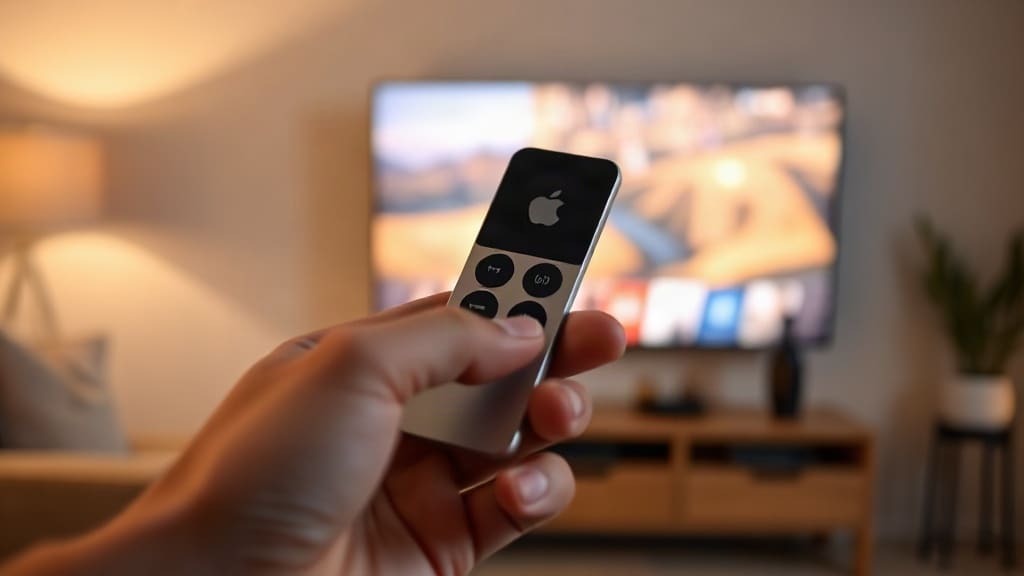
You sit down to watch your favorite show, press the button on your Apple TV remote, and nothing happens. The screen stays dark, the volume won't budge, or the menu doesn't respond. Before you toss the remote across the room, take a breath: most Apple TV remote problems are fixable with a reset or a simple re-pairing. Here's exactly how to get your remote working again, whether you have the latest Siri Remote or an older aluminum model.
Why Your Apple TV Remote Might Stop Working
Apple TV remotes connect to the box via Bluetooth, which means they can occasionally lose their connection or get confused by interference. A low battery, a recent software update, or even a minor glitch can cause the remote to become unresponsive. Sometimes the issue isn't the remote at all but the Apple TV itself. Understanding the root cause helps you choose the right fix.
The most common culprits include:
- Drained or faulty battery
- Bluetooth pairing loss between remote and Apple TV
- Software glitches after an update
- Physical damage from drops or spills
- Interference from other wireless devices
Regardless of the cause, a reset usually resolves the issue without needing a replacement.
How to Reset a Siri Remote (Apple TV 4K and Apple TV HD)
The Siri Remote (also called the Apple TV Remote on newer models) comes in two versions: the first generation with a touch surface at the top and the second generation with a clickpad. Resetting them is straightforward.
Step 1: Charge the Remote
If your remote is completely unresponsive, it might just be out of battery. Plug it into a wall charger using a Lightning cable (first generation) or USB-C cable (second generation). Wait at least 10 minutes before trying again. A low battery is often mistaken for a broken remote.
Step 2: Restart the Apple TV
Sometimes the Apple TV itself needs a reboot, not the remote. Go to Settings on your TV screen (if you can navigate) and select System, then Restart. If you can't use the remote to navigate, unplug the Apple TV from power, wait 10 seconds, and plug it back in. This clears temporary glitches.
Step 3: Re-pair the Remote
If the remote still doesn't respond after restarting, it may have lost its Bluetooth pairing. To re-pair it, bring the remote within 3 inches of the Apple TV. Press and hold the Back button (first generation) or Back + Volume Up buttons (second generation) simultaneously for about 5 seconds. A notification should appear on your TV screen confirming the pairing. If not, try again.
Step 4: Hard Reset the Remote (Second Generation Only)
The second generation Siri Remote has a hidden reset function. Press and release the Volume Up button, then press and release Volume Down, then press and hold the Power button for 10 seconds. The Apple TV will restart, and the remote will reset its connection. This is especially useful after a firmware update.
How to Reset an Older Apple TV Remote (Aluminum or White)
Older Apple TV models (2nd and 3rd generation) used a simple aluminum remote with a circular navigation ring. These remotes use infrared (IR) rather than Bluetooth, so resetting is different.
Check Line of Sight
IR remotes require a clear path between the remote and the Apple TV. Make sure nothing is blocking the front of the box and that you're within about 15 feet. Point the remote directly at the Apple TV.
Replace the Battery
These remotes use a standard coin cell battery (CR2032). Slide the battery tray out from the bottom, replace the battery with a fresh one, and try again. A dead battery is the most common cause of failure in older remotes.
Re-pair the Remote
If the remote still doesn't work, you can re-pair it by pressing and holding the Menu and Right buttons together for 6 seconds. A chain-link icon should appear on the screen, indicating the remote is linked.
What If the Remote Still Doesn't Work?
If you've tried all the steps above and your remote remains unresponsive, there are a few more things to check.
- Use the Apple TV Remote on your iPhone: Open Control Center, tap the Apple TV Remote icon, and select your Apple TV. This can help you navigate to Settings and check for issues.
- Check for software updates: On your Apple TV, go to Settings > System > Software Updates and install any available updates. Sometimes an outdated tvOS version causes remote problems.
- Reset your Apple TV to factory settings: As a last resort, go to Settings > System > Reset and choose Reset All Settings. This will erase your data, so back up first if possible.
If none of these work, your remote might be physically damaged. Contact Apple Support or visit an Apple Store for a replacement. A new Siri Remote costs around $59, but it's often cheaper than a service repair.
Preventing Future Remote Problems
To keep your Apple TV remote working smoothly, follow these simple habits:
- Charge your Siri Remote regularly, even if it seems fine. A full charge lasts about a month with normal use.
- Keep the remote away from liquids and extreme temperatures.
- Update your Apple TV software as soon as new versions are available.
- Avoid placing other Bluetooth devices too close to the Apple TV, as they can interfere.
A little maintenance goes a long way in avoiding frustrating evenings of troubleshooting.
Frequently Asked Questions
How do I know if my Apple TV remote is charging?
When you plug in a Siri Remote, you should see a battery icon appear on the TV screen briefly, indicating it's charging. If the remote is completely dead, it might take a few minutes before any sign appears. You can also check the battery level by going to Settings > Remotes and Devices > Remote on your Apple TV.
Can I use my iPhone as an Apple TV remote permanently?
Yes, the Apple TV Remote feature in Control Center works just like the physical remote for most functions. It's a handy backup when your physical remote is lost or broken. However, you won't get the same tactile feel or quick volume control without the physical buttons.
Why does my Apple TV remote keep disconnecting?
Recurring disconnections often point to Bluetooth interference from other devices like wireless speakers, routers, or even microwave ovens. Try moving your Apple TV away from other electronics or reducing the number of active Bluetooth connections nearby. Also, ensure your remote is fully charged, as low battery can cause intermittent drops.
What is the difference between resetting and re-pairing an Apple TV remote?
Re-pairing simply re-establishes the Bluetooth connection between the remote and the Apple TV without erasing any settings. Resetting, especially the hard reset on the second generation Siri Remote, clears the remote's temporary memory and forces it to reconnect from scratch. Both are safe and don't affect your Apple TV data.